
Cablelynx Internet Services in Pine Bluff, Parts of White Hall & southern Jefferson County
"Meow" (That's cat for the best internet in town.)
Click the buttons below to view our Broadband Nutrition Labels in both English and Spanish. Click the label to download a printable version.
Cablelynx Broadband - Frequently Asked Questions (FAQ)
View answers to the most common questions about Cablelynx Broadband service, Wi-Fi setup, billing, equipment, and troubleshooting.
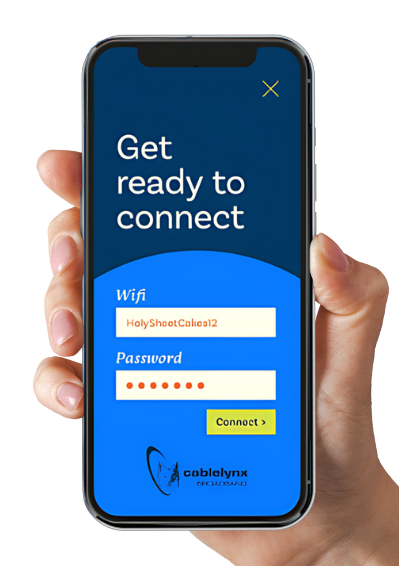
How do I set up my Cablelynx CommandIQ app?
Download the Cablelynx CommandIQ app from the Apple App Store or Google Play Store. Create an account, scan the QR code on your router, and follow the on-screen instructions to personalize your Wi-Fi network, view connected devices, and manage parental controls. Access to your network through the Cablelynx CommandIQ app requires a U4 or U6 router.
How do I find my Wi-Fi network name and password?
You can find your network name (SSID) and password:
- On the sticker on the bottom or side of your Cablelynx router
- Inside the CommandIQ app under My Network (if subscribed to Cablelynx CommandIQ)
- Call 800-903-0508, click to chat at cablelynx.com or email our customer support team at support@cablelynx.com.
How do I change my Wi-Fi name or password?
You can update these settings through:
- If subscribed to Cablelynx CommandIQ, you can use our CommandIQ app under Wi-Fi Settings
- Calling Cablelynx support (1-800-903-0508) for assistance
Devices will need to reconnect after the change.
Do you throttle your internet speeds?
Cablelynx does not throttle or intentionally slow down normal internet activity. Your speeds depend on your service plan, device capability, Wi-Fi strength, and network activity in your home. If you are experiencing a slowdown, please call us at 800-903-0508 so we can troubleshoot.
What is the difference between 2.4 GHz and 5 GHz Wi-Fi?
- 2.4 GHz: Longer range, better through walls, slower speeds
- 5 GHz: Faster speeds, shorter range, ideal for streaming and gaming
Most homes benefit from using both bands depending on device location and usage.
How do I set up my Cablelynx online account?
Visit the Cablelynx.com and select My Account. Click the link for Create a New Account, then enter your account number, Service Address Zip Code and the last 4 of the primary account holder’s SSN. Create a username and password to complete your setup.
How do I set up auto-pay for my Cablelynx bill?
After creating your Cablelynx online account, go to Billing or Payments, select Auto-pay, and add your preferred payment method. You will need to assign your payment method to your statement for the change to take effect. You can update or cancel auto-pay anytime, but we advise that you do so within 5 business days of your payment date.
How do I restart or reboot my router?
Unplug your router from the power source (and modem, if separate) for 10–15 seconds. Plug it back in and wait 2–3 minutes for everything to fully reboot. This fixes most temporary connection issues.
How do I improve my Wi-Fi signal?
- Place the router in a central, open location
- Keep it off the floor and away from metal or thick walls
- Connect high-use devices to 5 GHz
- Use extenders or mesh units for larger homes
- Limit or disconnect unused devices
How do I check for an outage in my area?
Cablelynx provides an Outage Heat Map, which shows real-time service interruptions—similar to a weather radar. If a group of customers in a specific area is offline, the heat map will highlight that region.
- Visit the Cablelynx Outage page at www.cablelynx.com/outage
- Look for any highlighted areas indicating active service issues.
- If your location is marked, our team is already aware and working to resolve the problem.
If your area is not shown on the map but you are experiencing issues, try rebooting your router. If the problem continues, contact Cablelynx support at 800-903-0508.
How many devices can I connect to my Wi-Fi?
Most Cablelynx Wi-Fi systems support 20+ connected devices, but performance depends on your speed plan. Homes with many smart devices or heavy streaming may need higher-speed tiers.
Why is my Wi-Fi slow?
Common reasons include:
- Too many devices connected
- Router placement issues
- Using older devices that don’t support higher speeds
- Running large downloads or streaming in multiple rooms
- Signal interference from walls, appliances, or neighbors
Running a speed test using a wired connection or closest your wireless
router can help diagnose the issue.
What equipment do I need for Cablelynx internet?
Most customers use:
- A Cablelynx-provided modem/router
- Or their own compatible modem and router (DOCSIS 3.1+ recommended)
- Optional Wi-Fi extenders or mesh units
Contact support at 800-903-0508 if you're unsure whether your device is
compatible.
Where can I view the Privacy Policy, Terms and Conditions and Acceptable Use Policy?
You can find current Cablelynx policies are online at Cablelynx.com/legal.
Download our Frequently Asked Questions
Click here to download.
*Rates are for new customers. Current customers, terms and conditions apply. Contact us for more information.*